How to do a Secret Santa in Microsoft Teams
Create your Secret Santa draw Free, no signup needed, email optional.
You can run a Secret Santa inside Microsoft Teams in two ways. Download Secret Santa Draw, upload it, and type secretsanta in a team or a group chat. Or skip the app and send each person a private link from the website. Either way, nobody, including the organizer, sees who has whom.
The two ways, and which to pick
- The app. Best when your Teams admin allows a custom app, or can upload it for the whole organization from the Teams admin center (Manage apps → Upload new app). Type
secretsantaand the bot messages each person. - No add-in. Best when IT will not approve an app this month. Create the draw on the website and paste each link into a 1:1 Teams chat. The no-add-in guide walks through that.
- The Teams Store listing is not live yet. The download on the Teams page is the way to install it today.
What to type, and what the card does
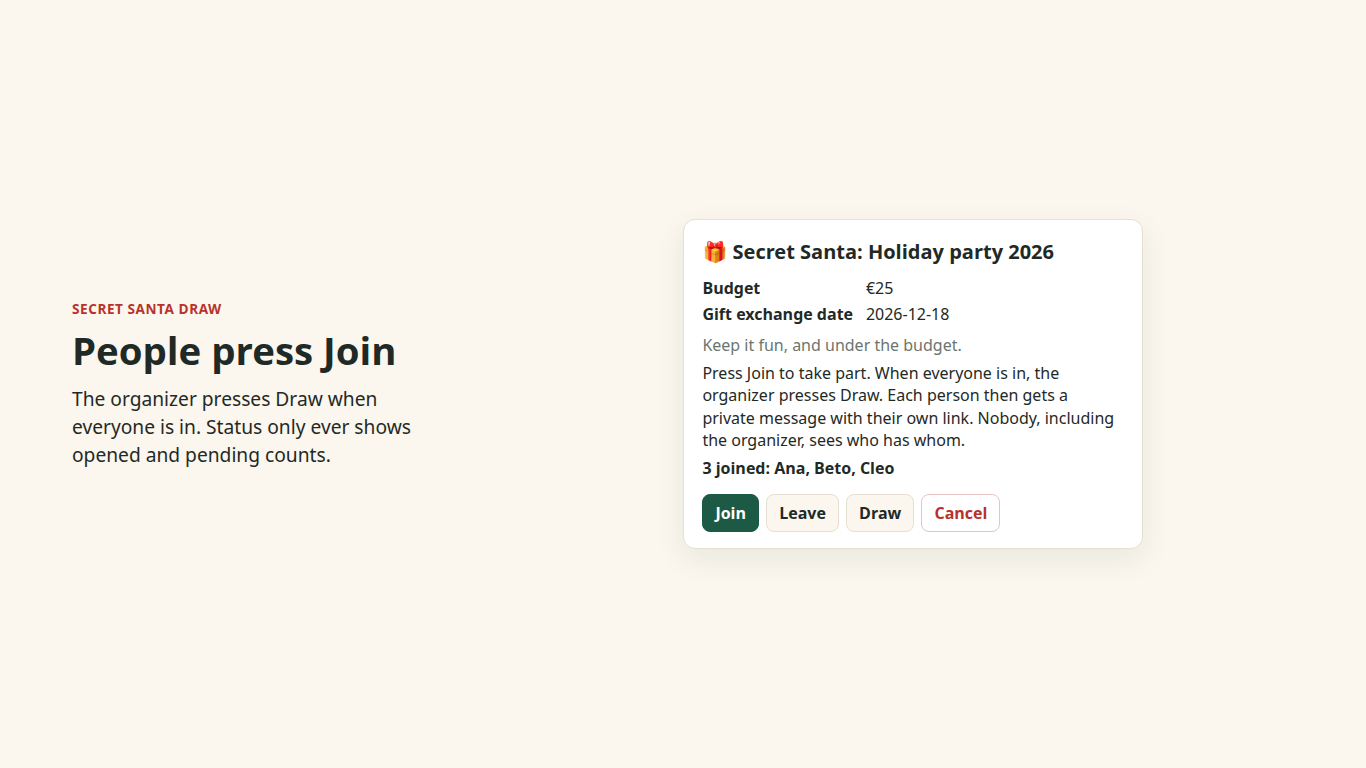
In the channel or group chat, type secretsanta (or start). The card asks for a group name, an optional budget, a date, a note, and who is in: people who press Join, or everyone in the chat or team.
Join is the right default for a big team. Everyone-in-the-chat is faster for a small group that is already in the thread. You need at least 3 people. The organizer presses Draw.
Each person then gets a 1:1 chat from the bot with one link. The channel only hears that the draw is on. status shows opened and pending counts, never names. remind messages again only the people who have not opened their link.
Rules that matter at work
Keep it voluntary, publish a spending cap, and let people say beforehand if they should not draw a manager or a partner. The app's card carries the budget and the date onto each private page.
A draw holds up to 300 people. For a company bigger than one team, run one draw per team rather than one giant channel.
Each person gets one private link. Opening it shows nothing until they press the button, so a chat preview does not spoil the name. By default nobody, including the organizer, sees who has whom. Draws are deleted after 400 days.
If someone does not get the message
Some tenants block apps from starting a chat. Ask that person to open a chat with Secret Santa Draw first, then the organizer types remind.
If the app cannot be installed at all, use the website and the WhatsApp or email habit you already have: one private link per person, never the whole list in the channel.
Frequently asked questions
Is there a Secret Santa bot for Microsoft Teams?
Yes. Secret Santa Draw. Download it from the Teams page and upload it as a custom app. A Teams Store listing is still on the way.
Does the organizer see who has whom?
No. Each person gets a private link in a 1:1 chat. Status only shows how many people have opened it.
What do I type?
secretsanta, or start, in the team channel or group chat. Not in a personal chat with the bot.
Can I do it with no app at all?
Yes. Use the website and paste each private link into a 1:1 Teams chat. See the no-add-in guide.
How many people?
At least 3, and up to 300 in one draw.
Guides
- Secret Santa for Microsoft Teams
- Secret Santa for Microsoft Teams, with no add-in
- How to do a Secret Santa in Slack
- How to do a Secret Santa in Google Chat
- Virtual office Secret Santa: the complete guide
- Secret Santa for work: a free office Secret Santa generator
- Cómo hacer el amigo invisible en Microsoft Teams